






SQZSoft Speed Alarm & Dashcam
Quick Reference
Launch the app on your device, and you will enter the main screen.
The default screen will be like this:
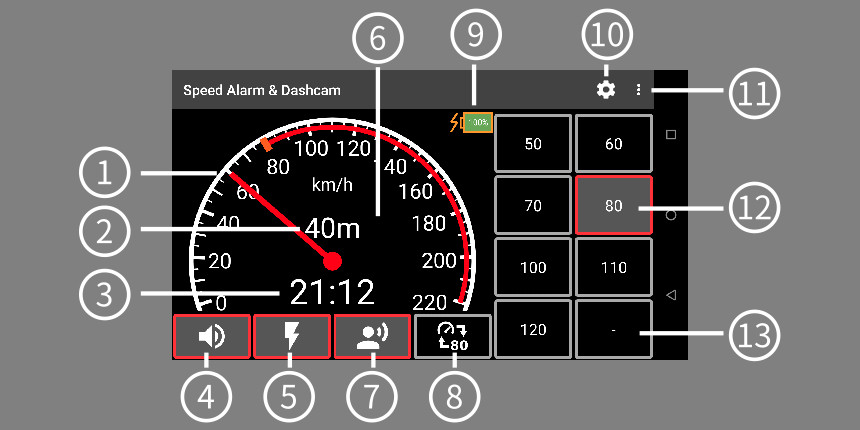
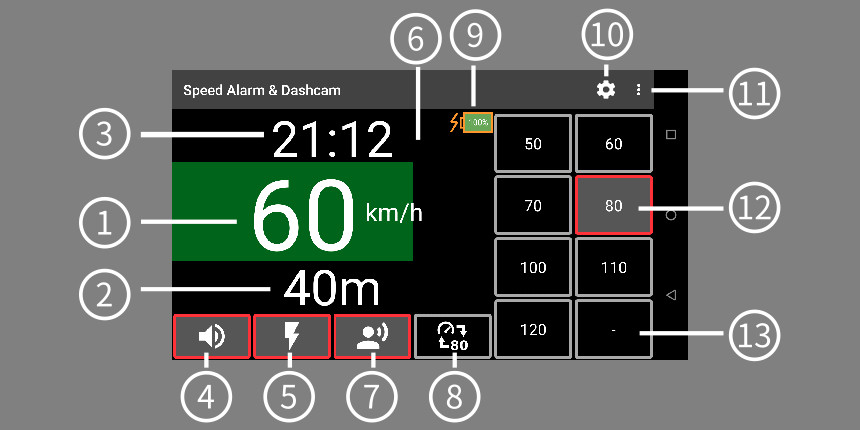
Annotations:
(1) Speed Arrow (2) Altitude (3)
Date time (4) Sound alarm
(5)
Flashlight alarm (6) Speed Panel
(7) Voice Alarm (8) Analog / digital
switcher
(9) Battery status (10)
App Settings (11) App menu (12)
Speed limit
(13) No speed limit
* Left screen is analog mode, right screen is digital mode. Two modes
can
be switched by tapping (8) Analog / digital switcher button;
* Tap each speed limit button for the speed limit you want to
use;
* Two-fingers tap on the speed panel, it will popup voice command
screen;
* Single tap the speed panel, it will popup a full screen menu to
let you use the dashcam operations, like take pictures, record videos;
--------------------------------
Full screen menu for dashcam functions:
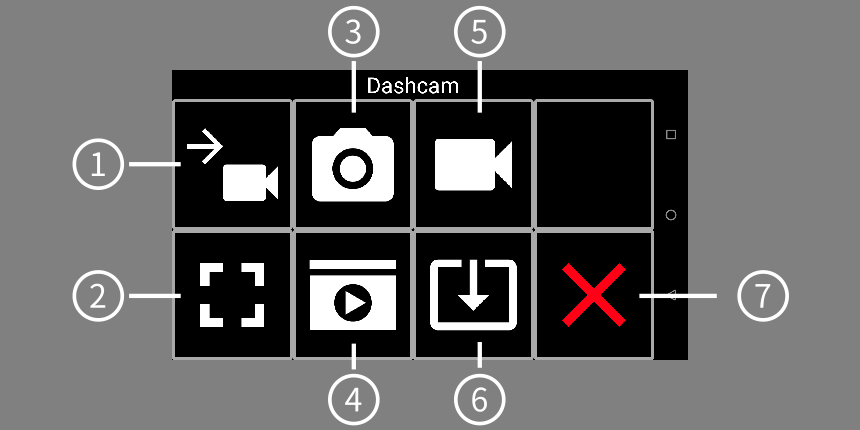
Annotations:
(1) Switch to dashcam mode (2) Change to fullscreen
mode
(3) Start taking pictures (4) Recorded file gallery
(5) Start recording video (6) Save video
(7) Close full screen menu
--------------------------------
When you started taking pictures or recording video, the speed panel
will become like this:
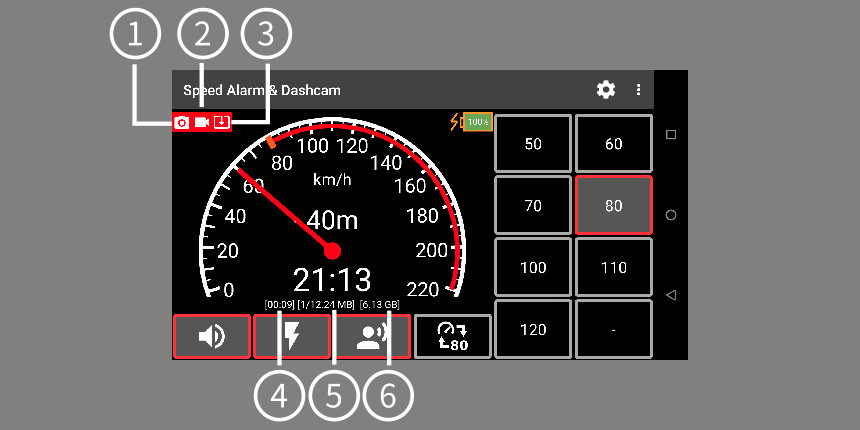
Annotations:
(1) Indicator for takeing pictures (2) Indicator for
recording video
(3) Indicator for saving video (4) Recorded video
segment length
(5) Cached video segment total and memory size
(6) Free storage space
--------------------------------
Adjust brightness and sound volume
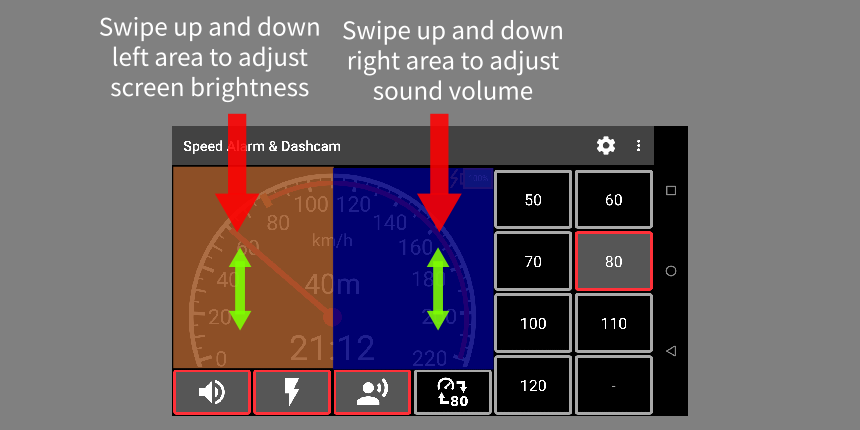
Swipe up and down left area to adjust screen brightness (need to grant
"Change system settings" permission);
Swipe up and down right area to adjust sound volume
--------------------------------
Double tap the speed panel, it will switch to dashcam mode, which
will
be like this:
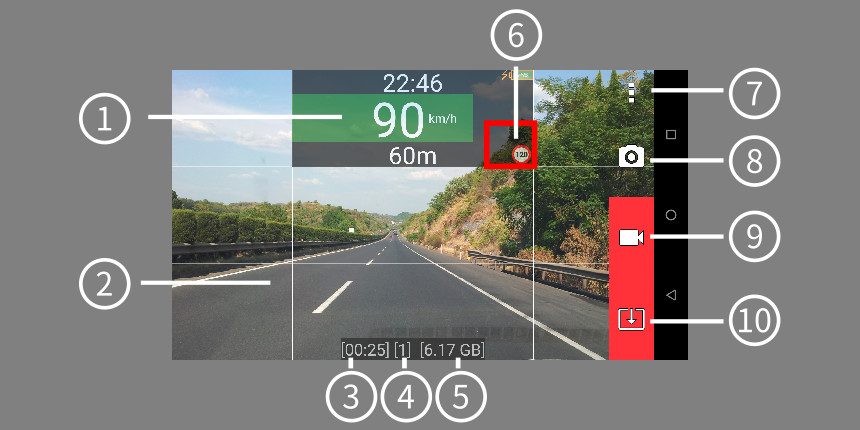
Annotations:
(1) Speed panel (2) Preview area
(3) Recorded video segment length
(4) Cached video segment total and memory size (5)
Free storage space
(6) Resize area (7) App menu (8)
Take pictures
(9) Record video (10) Save video
* Two-fingers tap on the speed panel, or the preview area, it will
popup voice command screen to use voice commands;
* Double tap the speed panel, the app will switch to speed panel mode;
* To move the speed panel position, hold the speed panel for about 3
seconds, then you can move it to the position on the screen;
* To resize the speed panel, hold the resize area for about 3 seconds,
then you can resize it to the size you like to use.
--------------------------------
Single tap the speed panel, it will popup a fullscreen menu to
let you select speed limits, and alarm options:
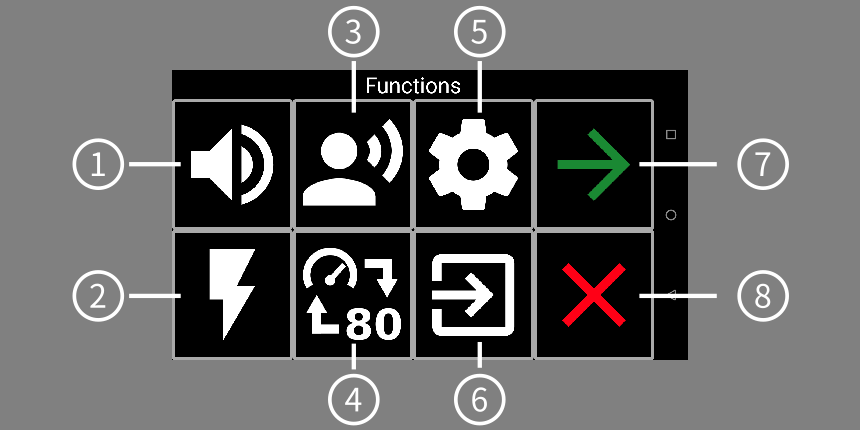
Annotations:
(1) Sound alarm (2) Flashlight
alarm (3) Voice alarm (4) Analog /
Digital switcher
(5) App settings (6) Exit app (7)
Next page (8) Close menu
--------------------------------
Another page of full screen menu:
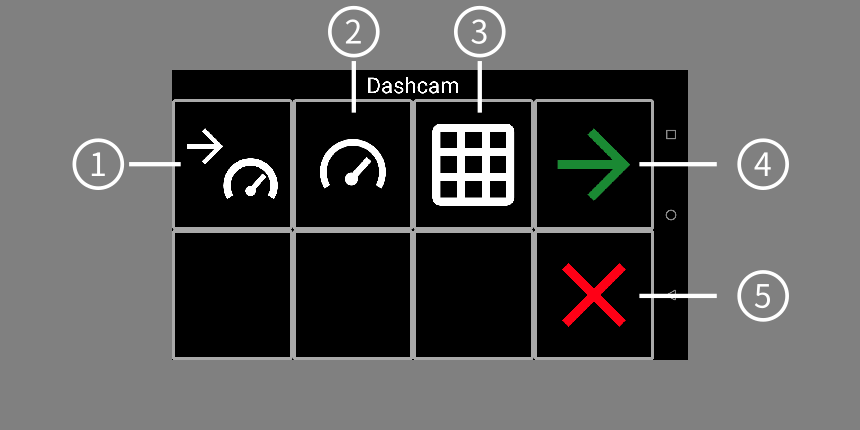
Annotations:
(1) Switch to speed panel mode (2) Display / Hide
speed panel
(3) Display / Hide grid on preview area
(4) Next page (5) Close menu
--------------------------------
Resize and move floating window
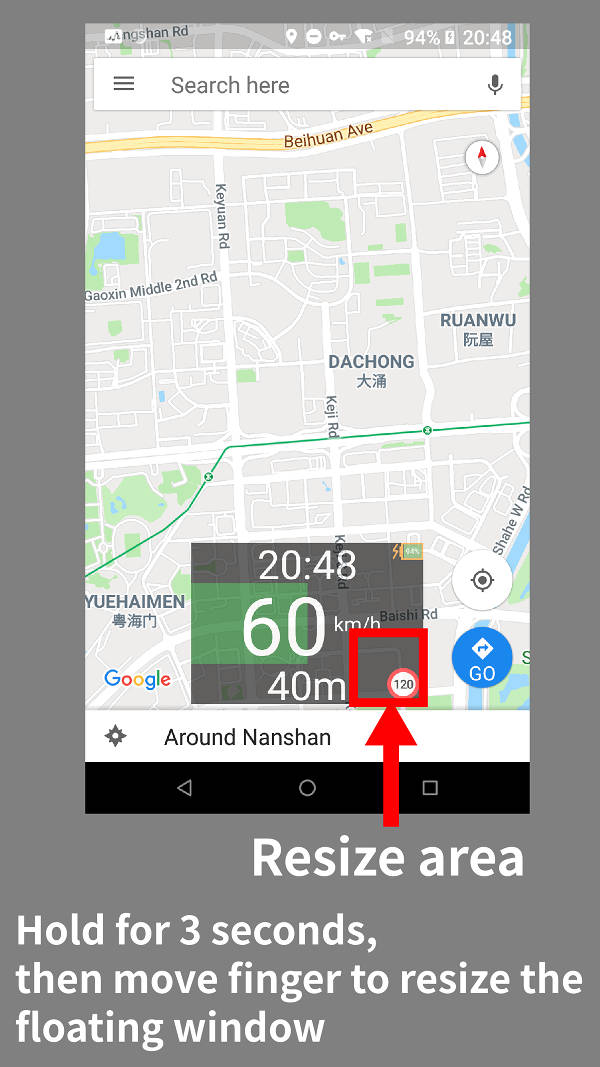
Hold down the floating window for 3 seconds, then move your finger to move the position;
Hold down the 3/4 area in the lower right corner of the
floating window for 3 seconds, then move your finger to change the size.
--------------------------------
Comments:
1. It will need a lot of power to record video or take pictures, so
please connect your device with a good cigar charger to supply enough
power;
2. The new version Android has the "Battery power saving" function,
which will interfere this app. If sometimes this app was killed
when running in the background, please disable the power saving
function;
--------------------------------
More detailed manuals are adding, any questions please contact our
support team by email:
support@sqzsoft.com